CONTACT RONIN ZEN
Choose your script and tell us what you need. The Ronin Zen team will answer by email, whether you are deciding what to buy or need help with a script you already own.
ZEN STUDIO INSTALLATION GUIDE
Download your personalized GPC file, verify it in Zen Studio Live and program it into an available Cronus Zen device slot.
12 STEPS
Sign in to your Ronin Zen customer library and download the script to your Windows PC. Keep the .gpc file in an easy-to-find location such as Downloads.
Connect the Cronus Zen device to your computer through its left-side USB-C programming port using a data-capable cable.
Start Zen Studio on your computer and wait for the Cronus Zen connection to be recognized.
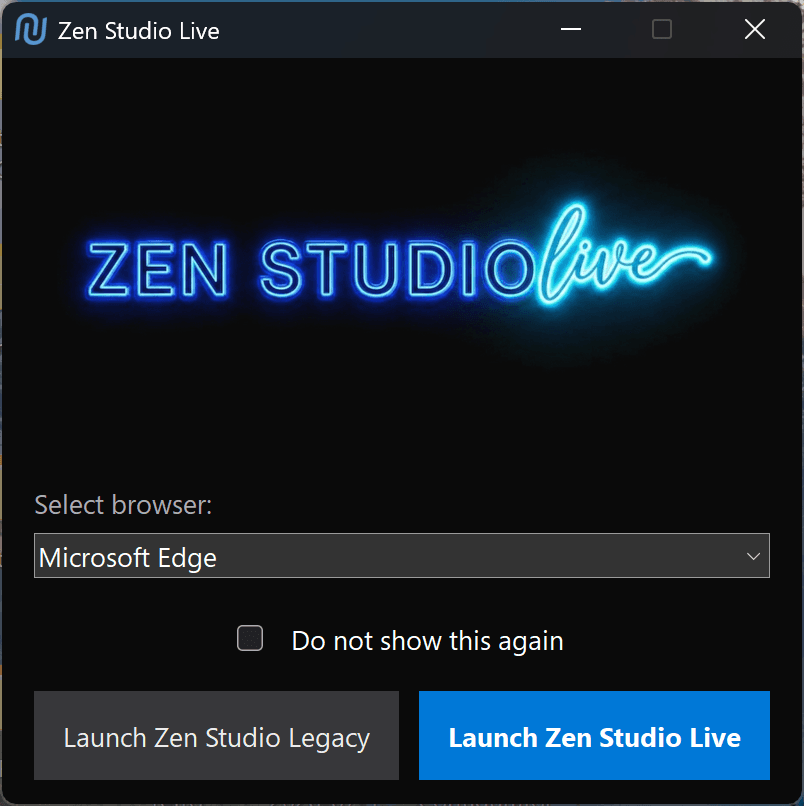
From the launcher, select Launch Zen Studio Live.
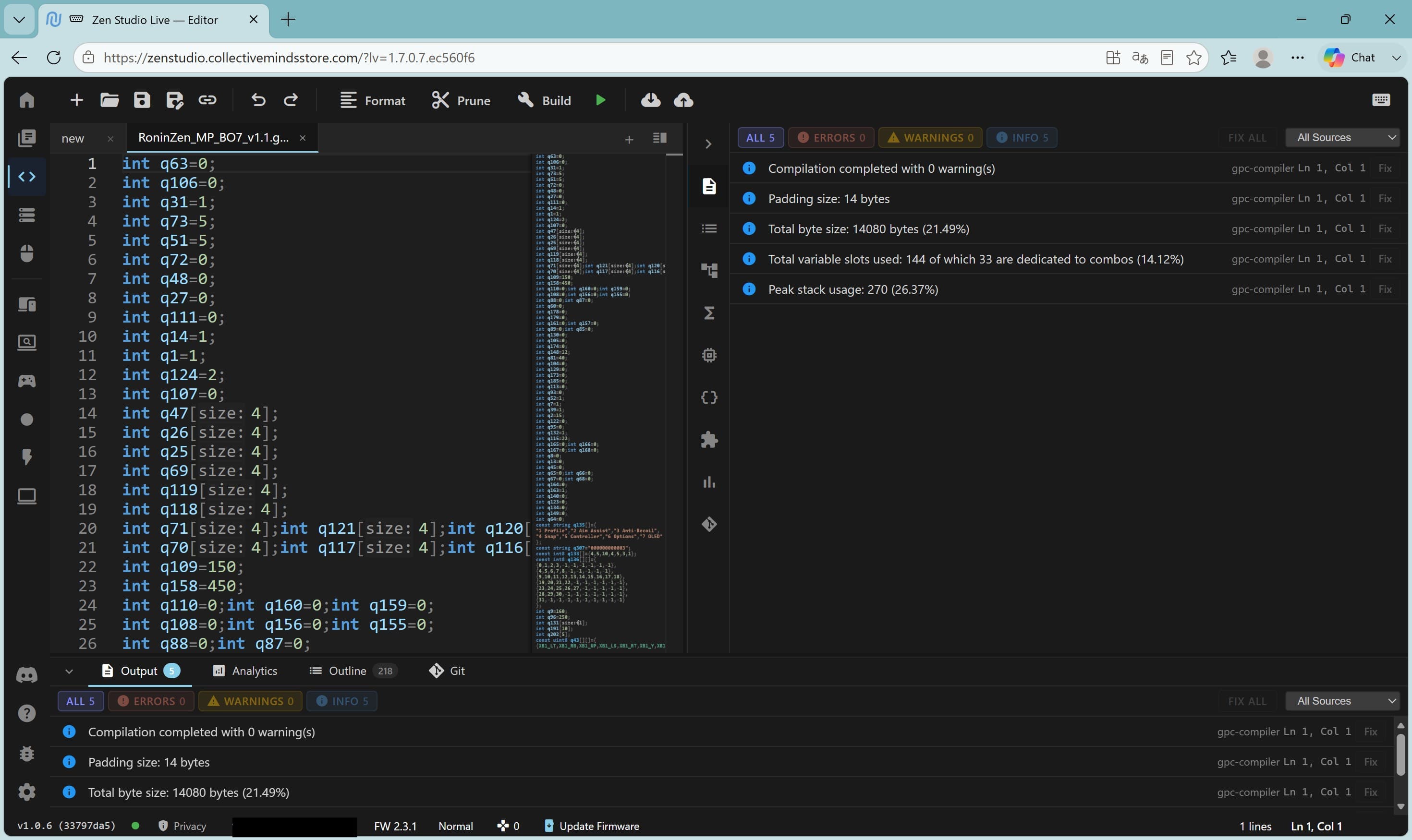
Select the Editor icon in the left navigation bar.
Use File in the upper toolbar, select the downloaded Ronin Zen .gpc file and choose Open.
Confirm that the script finishes compiling with 0 errors and 0 warnings. Do not program the device if Zen Studio reports a compilation problem.
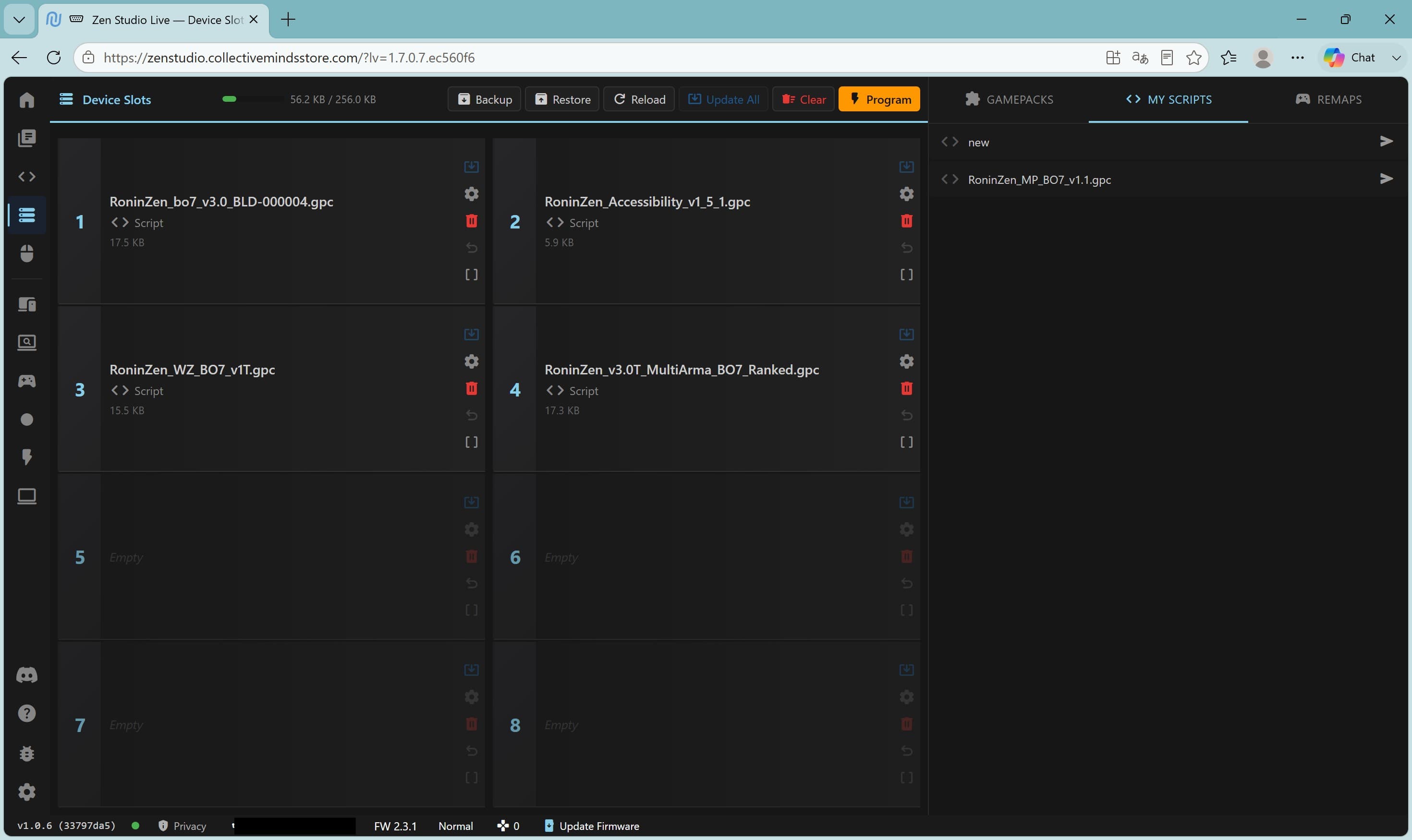
Select Device Slots from the left navigation bar.
In the upper-right area of Device Slots, select <> My Scripts.
Find the imported Ronin Zen script and drag it into the first empty device slot. Existing slots are not changed unless you replace their contents.
Choose Program in the upper-center toolbar and review the slot list before confirming.
Confirm Program Slots and wait until the operation completes. Then disconnect Cronus Zen from the PC and connect it to the PS5 using the separate PS5 connection guide.
Confirm that the downloaded file ends in .gpc, reopen it from the Editor and verify compilation again. If Cronus Zen is not detected, reconnect it through the left-side programming port with a known data cable before restarting Zen Studio.
Ronin Zen is an independent product and is not affiliated with or endorsed by Sony Interactive Entertainment or Collective Minds. Zen Studio screens may change after software updates. Follow applicable platform and game rules.
